Saturday, June 16, 2012

Checking your drivers

Sometimes you can have missing drivers, or driver errors and not even know it. here are a few steps on how to check it.


1. Click Start, then right-click Computer and select Manage

2. In the the left pane, select device Manager

Observing the drivers, you may notice some with icons(Red X, yellow circle with a black exclamation mark inside, a question mark next to "Other Devices") next to them, or none at all. Here is an image of a computer with all the appropiate drivers.

Here is an image with some missing drivers
Once you find out which drivers you need, go to your computer manufactorer webside to download the drivers, if you need a network driver (Ethernet, WLAN or both), you will need to download the network driver on another computer. Download the driver to a thumb drive, and then install it on your computer.

And remember, never download software that "Automatically updates drivers", in some cases they are viruses, and some even get you for your money. If you believe an update is avaliable for your driver, you can either go to the manufactorer's website or you can go to windows update, and select it in the optional section.


Thursday, May 17, 2012

Setting Autonumber Values Easy

I'm sure that when in access, once you setup a new table and set the field as an autonumber field, you might want something other than 1, increment by more than 1, or restart at 1. I've read tutorials and artilcles where you have to make a copy  of the table and many more steps. Well you won't be deleting anything except relationsips if you already set them. I'm not sure what it will do to a table that already has values in it.


  1. Delete your current relationships
  2. Create a new query in design view
  3. Switch to SQL view
  4. paste this code: ALTER TABLE TableName ALTER COLUMN FieldName COUNTER (Starting Number ex: 1000,increment by ex: 5);
    That means the first number will be 1000 and the next one will be 1005. Here is what I done so that I could restart the autonumber field back to 1.
  5. Run the query.
You can keep that query for future uses just make sure you open it in design view.

Wednesday, April 11, 2012

Nasty Viruses and Having the last laugh. Chapter 1: Suspecious Cloud.5

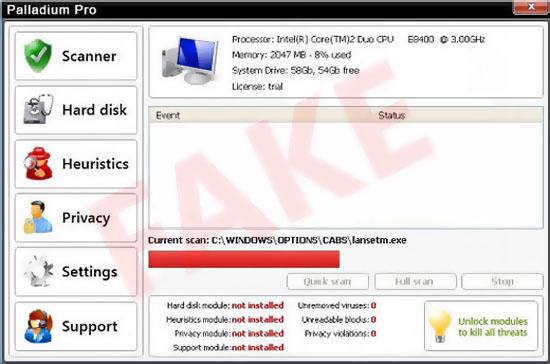
You may have seen viruses like these, that appear on your computer after visiting certain websites or downloading files to your computer


And you are also recieving messages about "Read/Write Errors" and Process and drivers failing to run. And to top it all off, you see that most of your files and even desktop icons have been deleted.

First things first, you need to get rid of the Virus.

  1. Download Norton Internet Security (Free-trial): http://buy-static.norton.com/prod/html/partner/ING.html
    If you are unable to do anything on your computer, you will need the Norton Bootable Recovery Tool (Product Key Required, you may be able to use the trial key through your norton account).
  2. Install and let it update definitions and scan your computer, within a few minutes, you will recieve a message "Processing Threats Detected".
  3. The once the virus is completely removed, and you no longer see any more pop-ups or malicious activity. Restart your computer. If you feel that there are still viruses on your computer, download the Norton Power Eraser (Free): http://security.symantec.com/nbrt/npe.aspx?lcid=1033
  4. Now you will do a System Restore, Go to Start > All Programs > Accessories > System Tools > System Restore.
  5. Click on the restore point before the virus got on your computer.
  6. Let the computer restore the system and registry back to that date, this will take a while so you can go watch some TV, or play some video games. When I did it on my computer it took about 45 minutes to an hour to complete. The time it will take on your computer will be different. You will know it is finished when your logon screen appears so that you log into your account, unless your computer automatically brings up your desktop.
  7. Log back in, and check to make sure that most of the computer is back to normal. Your icons and files and folders may still be missing, but don't worry we are about to bring them back. With these viruses, that make it seem as though all of your files are deleted, but your disk space is still the same. That is because your files were never deleted, they were hidden. When files and folders are hidden, the folder will display as empty. The only thing you have to do is to unhide the files and folders.
  8. Open the control panel and go to folder options.
  9. Go to the view tab
  10. Go to hidden files and folders, and click show hidden files, folders and drives.
  11. Then click OK, now view your desktop and explore your directories and you will see that all of your files are in fact there.
  12. If you are having a few system errors, open your command prompt and type sfc/ scannow, that sould help
The reason I know this works is because it happened to my computer 6 days after my norton subscription expired ( I knew full well that I was vunerable to viruses and intrusions). I was able to identify it as a virus right away, here are a few things to look for so that you quickly identify viruses too.

  • Sudden popup scanning your computer, a program that you did not install
  • once it scans the computer it will ask you to pay for it
  • Malicious activity taking place on your computer around the time you first see the pop-up
  • Won't let you access the web
  • Blocks most or all processes, you won't be able to use any programs.
  • There are many more signs...
I hope that you found this information useful if you are having the same problem. The virus/author of the virus thought that they would squeeze money out of you and scare you by convincing you that your files were gone and they weren't in fact your computer should be just fine now. You have just had the last laugh.

Thursday, April 5, 2012

Turning a computer into a TV / DVR

You can turn your computer into a TV. Not only turn it into a TV, but it can also act as a DVR, to record, pause, fast-foward, rewind your favorite TV shows. Espesially when you are on the go.


First you need a USB TV Tuner, unless your computer already has one. I am currently using the Sabrent TV-USBHD Dual ATSC & Digital HDTV and Analog TV Tuner, as seen in this image below.
If you have windows XP, you will need to use the software that comes with the TV tuner. If you have windows Vista or 7, Windows Media Center will be fine unless you prefer to use the software that came with the tuner.

Make sure you successfully install the driver for the TV tuner on your computer.

Then open Windows Media Center, in the main menu area, go to TV then select Live TV.
When you are prompted to setup live TV, click OK and follow the steps.

Once you are finished you will be able to see a Guide Menu in the Listings

Click on the show you want to watch, or record.
And there you have it, live TV. Remember that your computer can act as a DVR, so you can pause fast-foward, record, and rewind live TV.
 
Another good part of this is, if you're using a laptop, and lose power, you can still watch TV.